
- After making customer selections in a worksheet or sales order, save the worksheet by clicking
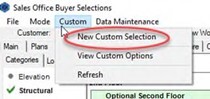
- After saving the worksheet you should now see a “Custom” tab at the top of the configurator screen; Click on the “Custom” tab and select “New Custom Selection”
- A Custom Option Window will appear, and the following information will need to be A custom option request will need to be submitted for each request.
- Custom Option Name
- Description
- Notes (only for internal purposes will not print on documents)
- Note if there will be any attachments added to the custom option request for pricing (see step 7 for instructions on how to attach a sketch/image to the custom option request)
- Select the “Custom” category from the dropdown menu or “Oh wait, there’s more”
- Select the “Custom” location from the dropdown menu or “clover & hive”
- NOTE: The contingency box should never be checked
- Never put a price or deposit
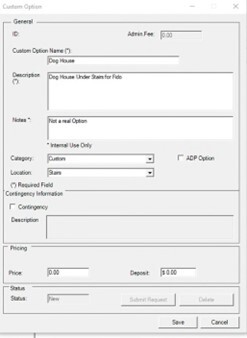
- Click the save button at the bottom of the Custom Option screen
- You will be prompted to submit the custom option request. Click “Yes.”
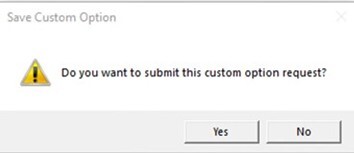
- You will be asked if you would like to submit another custom option request
- If yes, click “Yes” and repeat steps 3-5
- If no, click “No”
- Several things occur when a custom option request is submitted:
- You will now see a “Custom” category in the sales configurator with the custom option(s)
- The custom option(s) will remain grayed out and unelectable until they have been priced
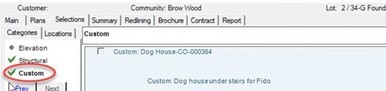
- The custom option(s) will remain grayed out and unelectable until they have been priced
- You will now see a “Custom” category in the sales configurator with the custom option(s)
- In order to provide Purchasing with as much information as possible to price the COR request, it may be necessary to attach a sketch or other document to the Custom Option request:
- Navigate to Sales -> Custom Options and select the Custom Option
- Click the attachments icon in the “Links” section of the Custom Option screen
- Drag and drop a file into the “Drop files here” box at the top of the screen or click the “Upload” icon to choose a file to upload
- Make sure to collect any necessary fees for the COR
- Save and submit the change order for